


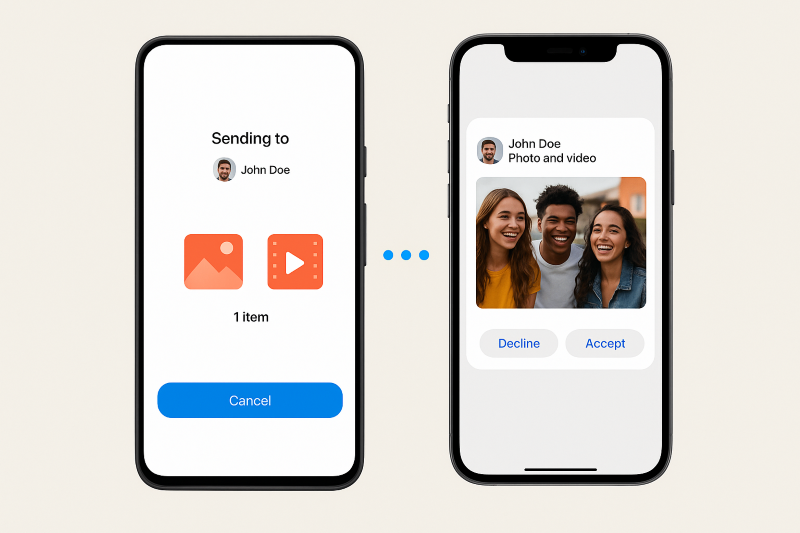
 Quick Share
Android meets AirDrop: Send photos, videos and docs to iPhones — the simple guide you need now!
In a major breakthrough, Google has become successful in creating a mode through which it can now share files directly with iphones, ipads and Macs.
The new Quick Share feature, which will allow a two-way exchange of files between Android and Apple ecosystem, is now available in only limited series.
The feature is currently only available in Google Pixel 10 series - Pixel 10, Pixel 10 Pro, Pixel 10 Pro XL and Pixel 10 Pro Fold.
How to exchange files between Pixel and iPhone using Quick Share?
Check Compatibility
- This feature is currently limited to the Pixel 10 lineup (Pixel 10, 10 Pro, 10 Pro XL, 10 Pro Fold).
- Ensure your Pixel has received the Quick Share extension update.
Enable AirDrop on the iPhone
- On the iPhone, open the Control Center, tap AirDrop.
- Set AirDrop visibility to: Everyone for 10 minutes.
- This temporary mode allows the Pixel to detect the iPhone.
Share a file from Pixel
- On the Pixel, open the file (photo, video, document) you want to share.
- Tap Share → Quick Share.
- In the Quick Share menu, your iPhone should show up as a nearby device. Tap it.
Accept the transfer on iPhone
- The iPhone will get an AirDrop-style prompt: Accept or Decline the file.
- Once accepted, the file is transferred peer-to-peer (Bluetooth discovery, then Wi-Fi for transfer), so your data doesn’t go through a server.
Receiving files on Pixel
- If you want to receive files from the iPhone: on the Pixel, open Quick Share, switch to Receive mode.
- The iPhone user can then send via AirDrop again, and your Pixel will pop up as a target.
- Received files are stored in the Pixel’s Files app → Downloads → Quick Share folder.
Troubleshooting tips
- Make sure Bluetooth and Wi-Fi are turned on on both devices.
- Keep both devices close to each other (within ~30 cm is ideal).
- Update Pixel’s Google Play System and Quick Share extension if iPhone isn’t appearing.
Support Our Journalism
We cannot do without you.. your contribution supports unbiased journalism
IBNS is not driven by any ism- not wokeism, not racism, not skewed secularism, not hyper right-wing or left liberal ideals, nor by any hardline religious beliefs or hyper nationalism. We want to serve you good old objective news, as they are. We do not judge or preach. We let people decide for themselves. We only try to present factual and well-sourced news.
Support objective journalism for a small contribution.